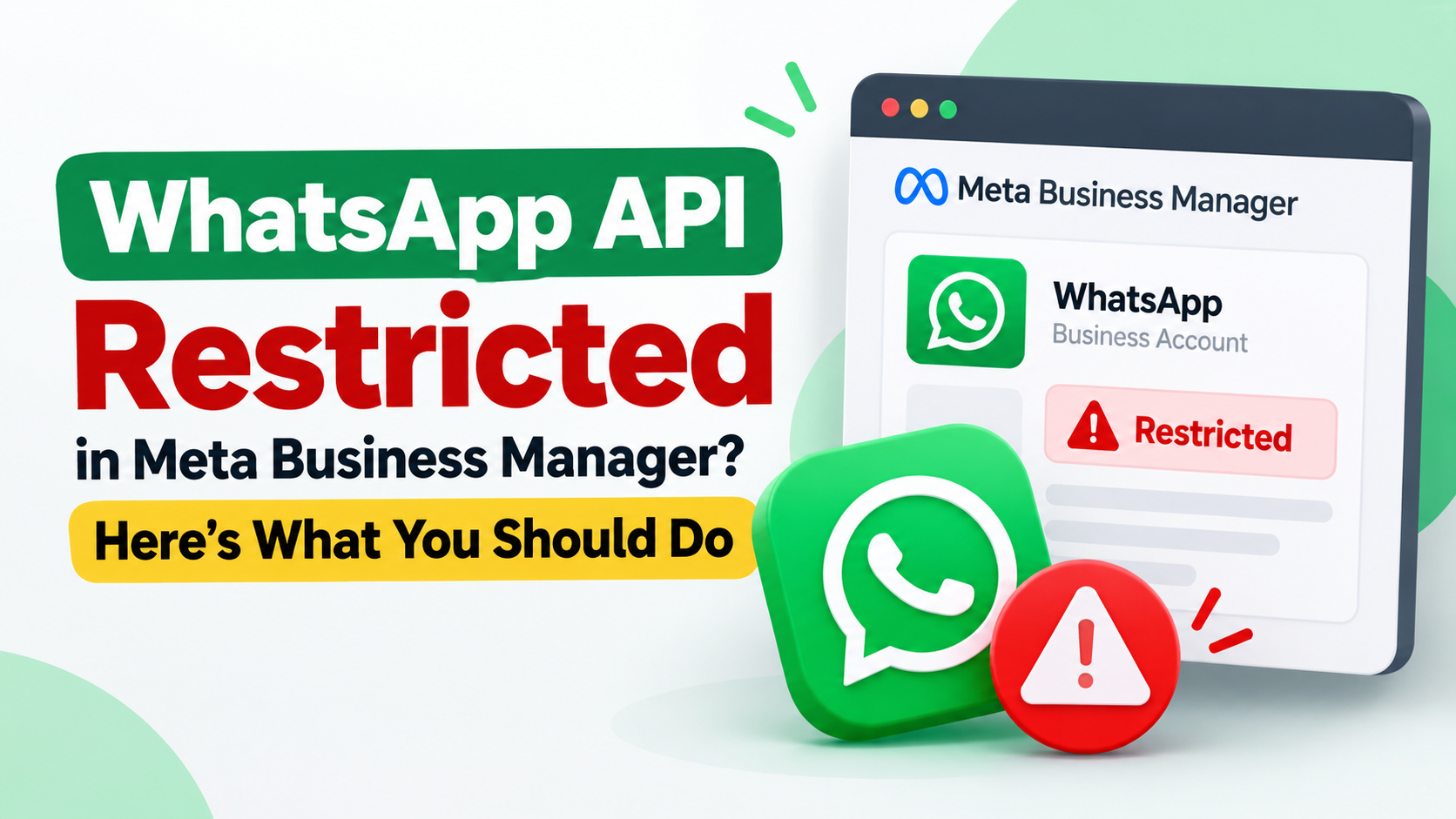
A disabled Business Manager or WhatsApp API account can interrupt customer support, order updates, and business messaging. Before making changes, identify exactly which account is affected and read the restriction notice.
To address a disabled WhatsApp API account, open Meta Business Support Home, select the affected WhatsApp Business account, review the issue, and request a review if that option is available. For a restricted Business Manager, follow the actions shown for the affected business portfolio. The notice in your account should guide your next step.
This guide explains how to investigate the problem, prepare useful evidence, and avoid common recovery mistakes. It is based on Meta and WhatsApp documentation. Account recovery is never guaranteed.
Business Manager Disabled vs. WhatsApp API Disabled
Business Manager, also referred to in Meta’s tools as a business portfolio, and a WhatsApp Business account are separate assets. Identify the affected asset before submitting an appeal.
- Business portfolio restricted: Review the portfolio’s restriction notice and required actions.
- WhatsApp Business account disabled: Check WhatsApp policy issues and available review options.
- Individual phone number affected: Check the number’s status and associated account notices.
- Message template rejected or paused: Review that template’s status and policy feedback.
- API messages failing without a restriction notice: Investigate error responses, permissions, configuration, and service status.
A failed API request alone does not establish that your account has been banned. Record the exact error before deciding whether you need technical troubleshooting or a policy appeal.
Why Can a WhatsApp Business Account Be Restricted?
WhatsApp requires businesses to follow its Business Messaging Policy and applicable terms. Its messaging guidelines explain that enforcement can draw on account information and messages reported by users.
Unwanted or Misleading Messages
Review whether recipients expected your messages, whether the content matched what they agreed to receive, and whether requests to stop messaging were respected. Inspect your contact collection process, campaign audience, message wording, and unsubscribe handling. Keep permission records rather than relying on a spreadsheet containing phone numbers.
Restricted Products or Services
Check whether your products, services, and message content are allowed. WhatsApp restricts various categories, and some regulated activities have specific exceptions and conditions. Read the current WhatsApp Business Messaging Policy for your exact business category.
Business Information or Security Issues
Check business details, administrator access, and security or verification tasks shown in your dashboard. Treat incomplete information as something to investigate. Do not assume it caused the restriction unless Meta’s notice identifies it.
How to Troubleshoot a Disabled Business Manager
1. Open Meta Business Support Home
Sign in using an administrator account and open Meta Business Support Home. Select the correct business portfolio, inspect the affected asset, and read the available actions. Meta states that an administrator must request a review of a restricted account.
Before changing anything, save the exact restriction message, business portfolio ID, affected asset ID, date the issue appeared, screenshots, and existing support case numbers. These records help you explain the issue consistently.
2. Complete the Actions Shown in Your Account
Follow the tasks Meta displays for your case. If identity, security, or business information is requested, provide accurate details through the official interface. Use documents belonging to the actual business and ensure your explanation describes the same organization.
3. Request a Review When Available
For eligible restrictions, select the affected account in Business Support Home and follow the review instructions. Explain what happened, why you believe the decision should be reconsidered, and what evidence supports your explanation.
WhatsApp API Disabled Solution: Step-by-Step
1. Confirm the Affected WhatsApp Account
Check the WhatsApp Business Account ID, connected phone number, and restriction notice. Businesses managing several accounts should confirm they are investigating the correct one. Record recent changes to integrations, administrators, message templates, and campaigns to create a useful timeline.
2. Review Recent Messaging Activity
- Which campaigns or automated flows were active?
- How were recipients added?
- What did recipients expect to receive?
- Were stop requests processed?
- Did a message promote a restricted product or service?
- Did an integration send unintended messages?
Pause any workflow you suspect is causing unwanted messages while you investigate.
3. Submit the Available WhatsApp Review
Meta’s restricted WhatsApp Business account guidance directs users to Business Support Home, where they can select the affected account and choose Request review when available. Build your submission around the specific policy issue. A generic request to enable an account gives the reviewer little information to assess.
4. Contact Your Messaging Provider if Needed
If you use an API provider, ask its support team to help interpret error logs and identify the affected asset. Provide account IDs, timestamps, screenshots, and relevant error messages. Keep access tokens, passwords, and customer data out of ordinary support messages unless a secure, necessary process explicitly requires them.
WhatsApp API Appeal Message Example
Replace the bracketed details and include only statements you can verify.
Hello Meta Support,
I am requesting a review of the restriction affecting [business name], WhatsApp Business Account ID [WABA ID], connected to [phone number].
The notice displayed on [date] states: [exact restriction reason].
We use this account for [specific business messaging purpose]. After reviewing the notice, we investigated [relevant workflow or activity].
Our findings are [brief factual explanation]. We have completed [actual corrective actions, if applicable].
We can provide [relevant permission records, message examples, business documents, or screenshots] to support this request.
Please review the restriction and let us know whether additional information is required. Thank you.
Do not claim that you fixed an issue unless the change has actually been completed.
What if Request Review Is Missing?
Confirm that you are using the correct administrator account and have selected the affected asset. Read the notice for remaining steps, review eligibility, or decision status. WhatsApp’s platform enforcement documentation describes appeal and acknowledgment options, but available options depend on the issue.
If an official support option is available, include a screenshot showing the missing button and ask what action remains possible for that specific account.
Mistakes to Avoid During Recovery
- Making unrelated changes before recording the original problem.
- Submitting contradictory explanations or inaccurate business documents.
- Continuing a messaging flow that appears to cause complaints.
- Sharing passwords or verification codes with recovery sellers.
- Treating a new account or phone number as a substitute for resolving the original issue.
- Paying for promised or guaranteed reinstatement.
Keep one clear record of your investigation, corrective actions, and support responses.
How to Reduce Future Restriction Risks
- Document how contacts enter your messaging audience.
- Make the business identity and message purpose clear.
- Process requests to stop messaging promptly.
- Review campaign relevance and frequency.
- Check products and message content against current policies.
- Review administrator access and connected integrations.
- Investigate warnings before continuing the affected activity.
These practices support better account management. They do not guarantee that an account will never face restrictions.
Frequently Asked Questions
Can a disabled WhatsApp API account be restored?
Restoration depends on the restriction and review outcome. Use the review options available for your account and provide relevant evidence. Submitting an appeal does not guarantee reinstatement.
How long does a WhatsApp API appeal take?
Use the status and timing information shown in your dashboard or support case. Avoid planning around a guaranteed recovery deadline.
Does business verification prevent WhatsApp restrictions?
Business verification should not be treated as permission to ignore messaging policies. WhatsApp Business Platform users remain subject to its terms and Business Messaging Policy.
Is a WhatsApp Business app ban the same as an API restriction?
The recovery interfaces differ. For a banned WhatsApp Business app account, check the in-app review process. For a restricted API account, check the affected asset in Meta Business Support Home.
Should I change the phone number immediately?
Record and investigate the issue first. Changing a number does not explain why the original account was restricted or correct the underlying workflow.
Official Resources
- Meta Business Support Home
- Troubleshoot a Restricted WhatsApp Business Account
- WhatsApp Business Platform Policy Enforcement
- WhatsApp Business Messaging Policy
- WhatsApp Business Terms
Editorial note: Meta and WhatsApp documentation checked on October 21, 2026. Available features and review options can vary by account. Follow the instructions displayed in your own account.